
Inventory Configuration
Complete reference for inventory configuration options
This page documents all available configuration options for creating inventories in zMenu.
File Location
Inventories are stored in the plugins/zMenu/inventories/ folder. Each YAML file represents one inventory. You can organize inventories in subfolders.
plugins/zMenu/inventories/
├── main_menu.yml
├── shop.yml
├── warps/
│   ├── spawn.yml
│   └── hub.yml
└── admin/
    └── admin_menu.yml
Basic Structure
# Inventory name displayed in the title bar
name: "&6My Inventory"

# Inventory size (9, 18, 27, 36, 45, or 54)
size: 54

# Enable or disable this inventory
enable: true

# Button definitions
items:
  button-name:
    # Button configuration...
Configuration Options
name
The title displayed at the top of the inventory.
name: "&6&lMy Server Menu"Aliases: name and title are interchangeable. You can use either one to define the inventory title.
Per-language translations:
Use translated-name (or translatedName) to supply a different title for each client locale. Falls back to name when no matching locale is found.
name: "&6My Inventory"
translated-name:
  - locale: fr-fr
    name: "&6Mon Inventaire"
  - locale: it-it
    name: "&6Il Mio Inventario"
  - locale: de-de
    name: "&6Mein Inventar"
Features:
- Supports color codes (
&6,&#FF5500) - Supports MiniMessage (if enabled)
- Supports placeholders (
%player%,%page%)
Pagination placeholders:
name: "&6Shop &7(Page %page%/%max-page%)"size
The number of slots in the inventory. Must be a multiple of 9 (for CHEST type).
| Size | Rows | Description |
|---|---|---|
| 9 | 1 | Single row |
| 18 | 2 | Two rows |
| 27 | 3 | Three rows (small chest) |
| 36 | 4 | Four rows |
| 45 | 5 | Five rows |
| 54 | 6 | Six rows (double chest) |
size: 54type
The inventory type. Defines the visual layout of the inventory.
type: CHESTAvailable types:
| Type | Size | Description |
|---|---|---|
CHEST | 9-54 | Standard chest inventory (default) |
DISPENSER | 9 | 3x3 dispenser layout |
DROPPER | 9 | 3x3 dropper layout |
FURNACE | 3 | Furnace layout |
WORKBENCH | 10 | Crafting table layout |
ENCHANTING | 2 | Enchanting table layout |
BREWING | 5 | Brewing stand layout |
ANVIL | 3 | Anvil layout |
BEACON | 1 | Beacon layout |
HOPPER | 5 | Hopper layout (5 slots) |
SHULKER_BOX | 27 | Shulker box layout |
BARREL | 27 | Barrel layout |
BLAST_FURNACE | 3 | Blast furnace layout |
LECTERN | 1 | Lectern layout |
SMOKER | 3 | Smoker layout |
LOOM | 4 | Loom layout |
CARTOGRAPHY | 3 | Cartography table layout |
GRINDSTONE | 3 | Grindstone layout |
STONECUTTER | 2 | Stonecutter layout |
SMITHING | 4 | Smithing table layout |
When using a type other than CHEST, the size option is ignored as each type has a fixed size.
Example with hopper:
name: "&8Quick Select"
type: HOPPER

items:
  option1:
    slot: 0
    item:
      material: DIAMOND
      name: "&bOption 1"
rename-requirements (Anvil)
When you use type: ANVIL, the inventory becomes a text input: the player can type text in the anvil rename field. Each time the text changes, zMenu runs the requirements defined under rename-requirements, giving you live validation of what the player is typing.
The anvil has 3 slots: the two input slots (0 and 1) and the output/result slot (2).
name: "&8Type something"
type: ANVIL

rename-requirements:
  requirements:
    - type: placeholder
      placeholder: "%new_text%"
      action: CONTAINS_STRING
      value: "admin"
      deny:
        - type: message
          messages:
            - "&cYou cannot use that word!"

items:
  input:
    slot: 0
    item:
      material: PAPER
      name: "Type here"
  result:
    slot: 2
    item:
      material: NETHER_STAR
      name: "&aYou typed: &f%new_text%"
Placeholders available inside rename-requirements:
| Placeholder | Description |
|---|---|
%type% | The kind of change: ADDED, REMOVED, CLEARED, REPLACED or EQUAL |
%old_text% | The text before the change |
%new_text% | The current text in the rename field |
%char% | The character that was added or removed (only for ADDED / REMOVED) |
The result item placed in slot 2 is sent directly to the player and is updated on every keystroke, which lets you build a live preview of what the player is typing.
enable
Enable or disable this inventory. Disabled inventories cannot be opened.
enable: trueThis is useful for temporarily disabling an inventory without deleting the file.
update-interval
Automatically refresh the inventory at a regular interval (in milliseconds).
update-interval: 1000 # Refresh every second (1000ms)1000ms = 1 second. Use this for inventories with dynamic placeholders that need frequent updates.
title-animation
Animate the inventory title with multiple frames. This creates a dynamic title that cycles through different text values.
Requirements
This feature requires PacketEvents to be installed on your server. Without PacketEvents, title animations will not work.
title-animation:
  titles:
    - "&bWelcome to &aMenu!"
    - "&eEnjoy &four &9Features!"
    - "&cRotating &6Animated &2Title!"
  cycles: 5
  initial-delay: 1
  interval: 2
  time-unit: SECONDS
  show-items-after-animation: true
  item-update-interval: 1
Configuration options:
| Option | Type | Default | Description |
|---|---|---|---|
titles | List | - | List of title frames to cycle through |
cycles | Integer | -1 | Number of animation cycles (-1 for infinite) |
initial-delay | Integer | 0 | Delay before animation starts |
interval | Integer | 1 | Time between each frame |
time-unit | String | SECONDS | Time unit for delays (SECONDS, MILLISECONDS, TICKS) |
show-items-after-animation | Boolean | true | Show items after animation completes |
item-update-interval | Integer | 1 | How often to update items during animation |
Time units:
NANOSECONDSMICROSECONDSMILLISECONDSSECONDSMINUTESHOURSDAYS
Complete example:
name: "&6Loading"
size: 27

title-animation:
  titles:
    - "&6&l⏳ Loading."
    - "&6&l⏳ Loading.."
    - "&6&l⏳ Loading..."
    - "&a&l✓ Welcome!"
  cycles: 1
  initial-delay: 0
  interval: 500
  time-unit: MILLISECONDS
  show-items-after-animation: true

items:
  content:
    slot: 13
    item:
      material: NETHER_STAR
      name: "&eMenu Content"
Example
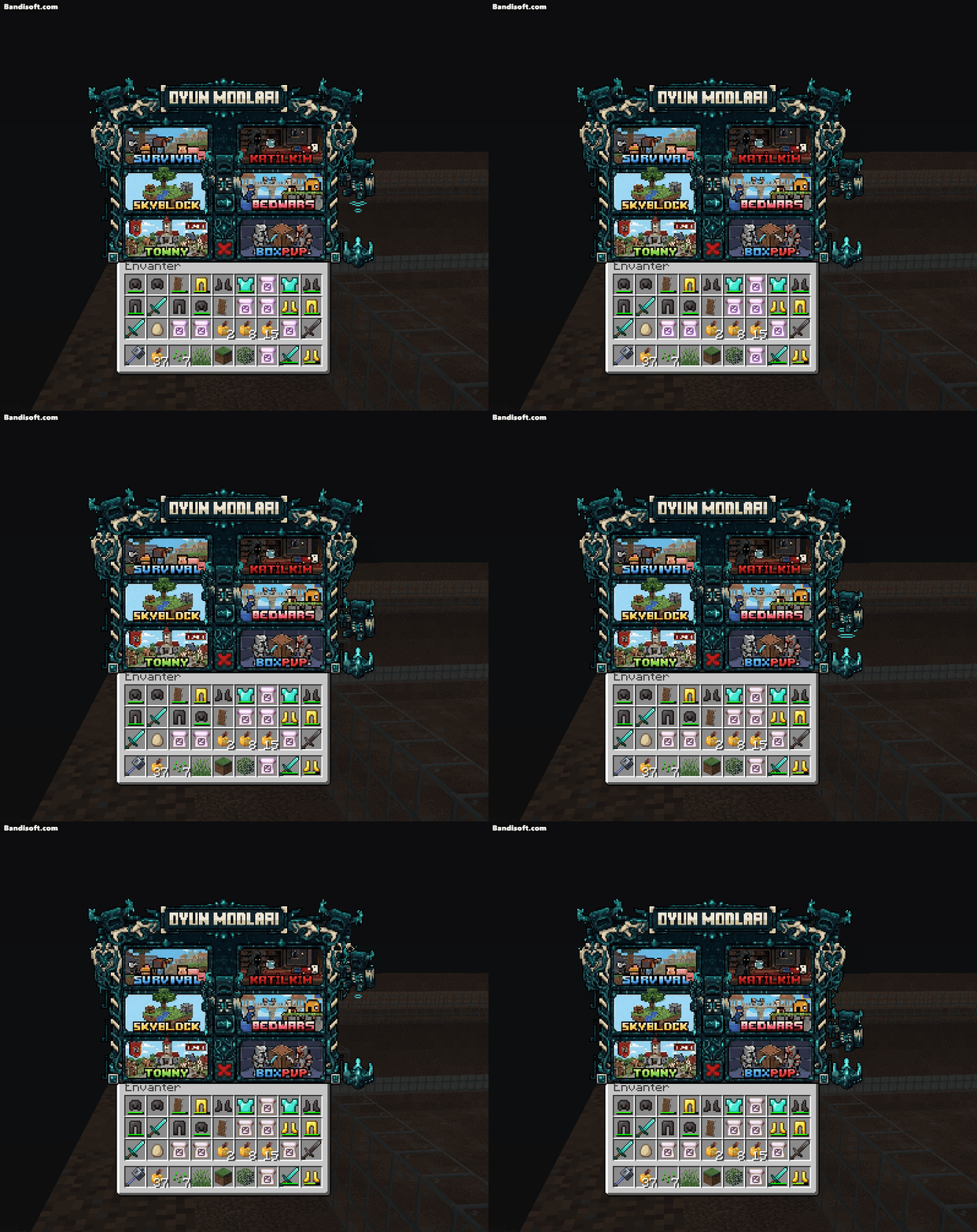
clear-inventory
Clear the player's inventory while the menu is open and restore it when closed.
clear-inventory: trueUse cases:
- Custom texture packs that overlay the entire screen
- Preventing item interaction while in menu
clear-inventory-type
Choice what type of inventory clear is used to clear the player's inventory.
clear-inventory-type: DEFAULTOptions:
DEFAULT- Clears the inventory using the default method (clears the player's inventory and saves the contents to restore later)PACKET_EVENT- Clears the inventory using PacketEvents (sends packets to the player to clear their inventory without actually modifying it, so items remain in their inventory but are not visible)
cancel-item-pickup
Prevent players from picking up items while the inventory is open.
cancel-item-pickup: trueUse cases:
- Preventing accidental item pickup during menu interaction
- Clean GUI experience without interference
click-limiter-enabled
Enable a click limiter to prevent players from clicking too fast.
click-limiter-enabled: truetarget-player-name-placeholder
Define a custom placeholder for the target player's name. Useful when opening inventories for other players.
target-player-name-placeholder: "%target%"Default: %player_name%
Example usage:
name: "&6Profile of %target%"
target-player-name-placeholder: "%target%"

items:
  info:
    slot: 13
    item:
      material: PLAYER_HEAD
      name: "&e%target%"
      lore:
        - "&7Viewing player profile"
Useful for profile menus or any inventory opened for a specific player.
action-patterns
Apply action patterns to all buttons in this inventory. Action patterns are reusable sets of actions defined in the plugins/zMenu/action_patterns/ folder.
action-patterns:
  - "default-actions"
  - "click-sound"
Action pattern file example (plugins/zMenu/action_patterns/default-actions.yml):
name: default-actions
actions:
  - type: sound
    sound: ENTITY_VILLAGER_YES
deny-actions:
  - type: sound
    sound: ENTITY_VILLAGER_NO
When applied, all buttons in the inventory will inherit these actions. Button-specific actions are executed after pattern actions.
fill-item
Define an item to fill all empty slots.
fill-item:
  material: BLACK_STAINED_GLASS_PANE
  name: "&8"
Aliases: fill-item and fillItem are interchangeable.
This automatically fills any slot not occupied by a button.
patterns
Apply reusable patterns to this inventory.
patterns:
  - "navigation_bar"
  - "border_pattern"
Patterns must be defined in the plugins/zMenu/patterns/ folder. See Patterns for details.
matrix
Define the inventory layout visually using characters.
matrix:
  - "AAAAAAAAA"
  - "A       A"
  - "A   B   A"
  - "A       A"
  - "AAAAAAAAA"

items:
  A:
    item:
      material: BLACK_STAINED_GLASS_PANE
      name: "&8"
  B:
    item:
      material: DIAMOND
      name: "&bCenter Item"
Each character represents an item. Spaces are empty slots.
items
The buttons in your inventory. This is where you define all clickable elements.
items:
  my-button:
    slot: 0
    item:
      material: DIAMOND
      name: "&bDiamond"
    actions:
      - type: message
        messages:
          - "&aYou clicked the diamond!"

  another-button:
    slot: 8
    item:
      material: EMERALD
      name: "&aEmerald"
See Button Configuration for complete button documentation.
view-requirement
Requirements that must be met to open this inventory.
view-requirement:
  requirements:
    - type: permission
      permission: "myserver.vip"
      deny:
        - type: message
          messages:
            - "&cYou need VIP to access this menu!"
If requirements aren't met, the inventory won't open and deny actions will execute.
open-requirement
Requirements that must be met to open this inventory. Similar to view-requirement, but checked before opening the inventory, allowing you to prevent the inventory from opening at all if conditions aren't met.
open-requirement:
  requirements:
    - type: permission
      permission: "myserver.premium"
Aliases: open_requirement and open-requirement are interchangeable.
inventory-replacement
Automatically redirect Bedrock players to a native Bedrock form (or to another inventory) when they try to open this inventory. Java players will see the regular inventory as usual.
Requirements
This feature requires Geyser or Floodgate installed on your server.
inventory-replacement:
  name: "shop-form"
  plugin: "zMenu"
  pages:
- 1| Option | Type | Default | Description |
|---|---|---|---|
name | String | - | The Bedrock form file name (without .yml) |
plugin | String | zMenu | The plugin owning the Bedrock form |
pages | List | empty | Only redirect on these pages (empty = all pages) |
mode | String | CUMULUS | CUMULUS: open a Bedrock form. CHEST: open another zMenu inventory named name instead |
See Bedrock Forms for complete documentation on creating Bedrock forms.
open-with-item
Define an item that opens this inventory when held and clicked.
open-with-item:
  item:
    material: COMPASS
    name: "&6&lMenu"
    lore:
      - "&7Right-click to open"
  actions:
    - RIGHT_CLICK
  type: full # full, contains, or starts_with
Aliases: open-with-item and openWithItem are interchangeable.
Actions types:
RIGHT_CLICK- Right click in air + on blocksLEFT_CLICK- Left click in air + on blocksRIGHT_CLICK_AIR- Right click in air onlyLEFT_CLICK_AIR- Left click in air onlyRIGHT_CLICK_BLOCK- Right click on a block onlyLEFT_CLICK_BLOCK- Left click on a block only
Type options:
full- Item must match exactlycontains- Item name must contain the specified namestarts_with- Item name must start with the specified name
Give players the item with:
/zm giveopenitem <inventory> <player>open-actions
Actions to execute when the inventory opens.
open-actions:
  - type: sound
    sound: ENTITY_EXPERIENCE_ORB_PICKUP
  - type: message
    messages:
      - "&aWelcome to the menu!"
close-actions
Actions to execute when the inventory closes.
close-actions:
  - type: message
    messages:
      - "&7Thanks for visiting!"
local-placeholders
Define inventory-specific placeholders.
local-placeholders:
  server-ip: "play.myserver.com"
  discord: "discord.gg/myserver"

items:
  info:
    item:
      lore:
        - "&7IP: &f%server-ip%"
        - "&7Discord: &f%discord%"
Complete Example
name: "&6&lServer Menu &7(&f%page%&7/&f%maxPage%&7)"
size: 54
enable: true
update-interval: 2000  # 2 seconds

fill-item:
  material: GRAY_STAINED_GLASS_PANE
  name: "&8"

patterns:
  - "navigation"

view-requirement:
  requirements:
    - type: permission
      permission: "server.menu.use"
      deny:
        - type: message
          messages:
            - "&cYou don't have permission to use this menu!"

open-actions:
  - type: sound
    sound: BLOCK_CHEST_OPEN
    pitch: 1.2

close-actions:
  - type: sound
    sound: BLOCK_CHEST_CLOSE

local-placeholders:
  menu-version: "1.0"

items:
  title:
    slot: 4
    item:
      material: NETHER_STAR
      name: "&6&lServer Menu"
      lore:
        - "&8Version %menu-version%"
        - ""
        - "&7Welcome, &f%player%&7!"
        - ""
        - "&7Select an option below."

  teleports:
    slot: 20
    item:
      material: ENDER_PEARL
      name: "&b&lTeleports"
      lore:
        - "&7Access teleportation options"
    actions:
      - type: inventory
        inventory: "teleports_menu"

  shop:
    slot: 22
    item:
      material: GOLD_INGOT
      name: "&e&lShop"
      lore:
        - "&7Buy and sell items"
    actions:
      - type: inventory
        inventory: "shop_menu"

  settings:
    slot: 24
    item:
      material: COMPARATOR
      name: "&c&lSettings"
      lore:
        - "&7Configure your preferences"
    actions:
      - type: inventory
        inventory: "settings_menu"

  close:
    slot: 49
    item:
      material: BARRIER
      name: "&c&lClose"
      lore:
        - "&7Close this menu"
    actions:
      - type: close
Multi-Page Inventories
zMenu automatically creates pagination when buttons have multiple slots or pages defined:
items:
  shop-item:
    slots:
      - 10-16
      - 19-25
      - 28-34
    item:
      # This will create multiple pages if there are more items than slots
Use NEXT and PREVIOUS button types for navigation. See Button Types for details.
Best Practices
- Organize your inventories in subfolders by category
- Use patterns for repeated elements like borders
- Use local placeholders for values used multiple times
- Test with
/zm reload inventory <name>for quick iteration - Use meaningful button names for easier maintenance
- Keep inventory sizes appropriate - don't use 54 slots if you only need 27
Next Steps
- Learn how to Create an Inventory step by step
- Configure Buttons for your inventory
- Add Actions to make buttons interactive